Glowmello brings your TP-Link Tapo cameras, smart plugs and robot vacuums together in one calm, beautiful Windows PC app – view every camera live, side by side. It talks to them directly over your home network – no cloud, no fuss.
Glowmello · now
Washing machine finishedPower has dropped. Time to hang it out.
Using now
116W
Smart plugs
Cameras
Robot vacuums
Energy & costs
Automations
Everything in one warm place
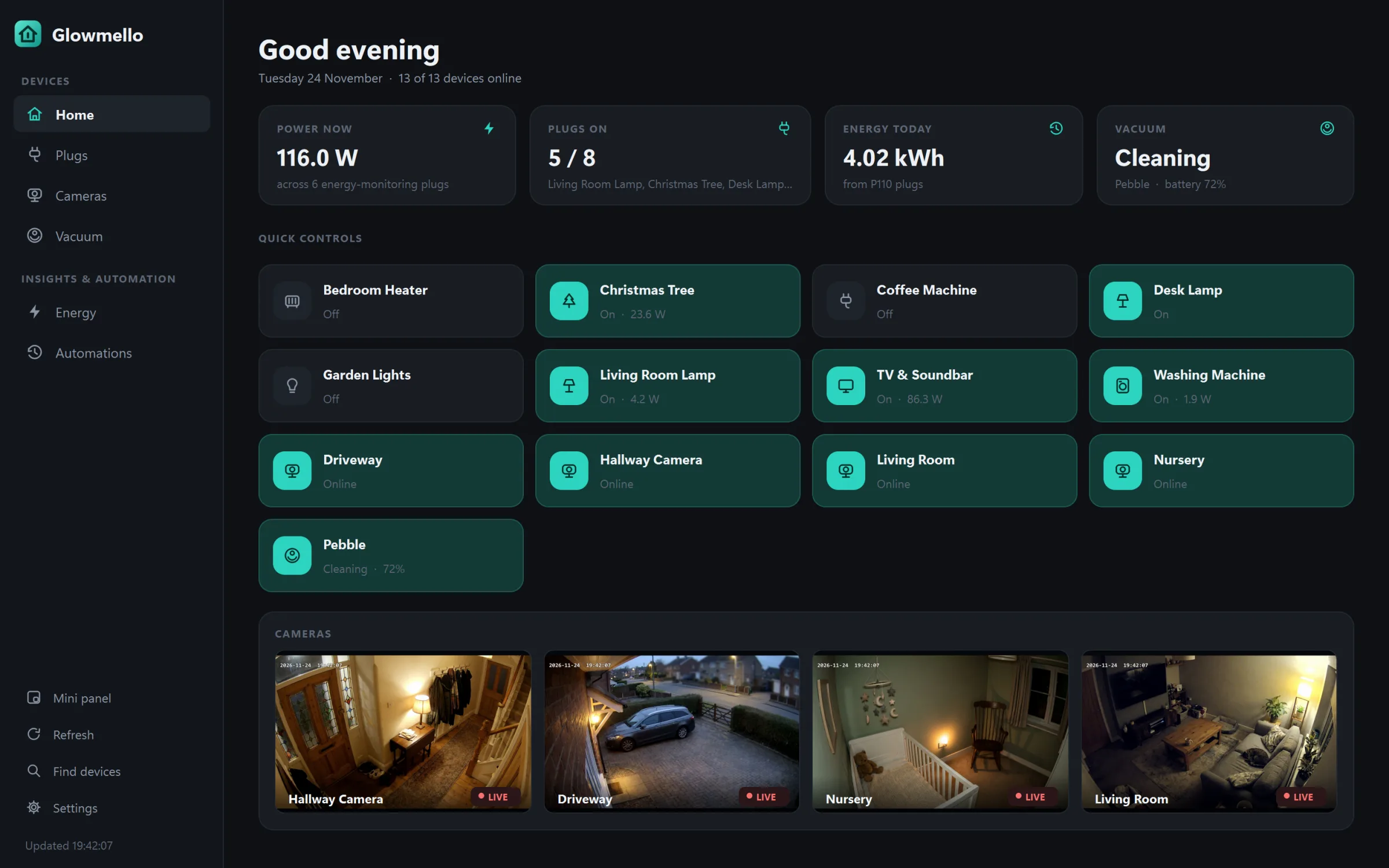
Your whole home, at a glance
No more reaching for your phone. Glowmello sits quietly on your PC and puts every plug, camera and vacuum a click away.
Home
A dashboard that feels like home
See how much power your home is using right now, which plugs are on, the energy you've used today and what the vacuum is up to – all on one calm screen.
Live power, plugs on and today's energy
Vacuum status and a live camera preview
Quick tiles – rename, re-icon, reorder or hide them
Glowmello
Smart plugs
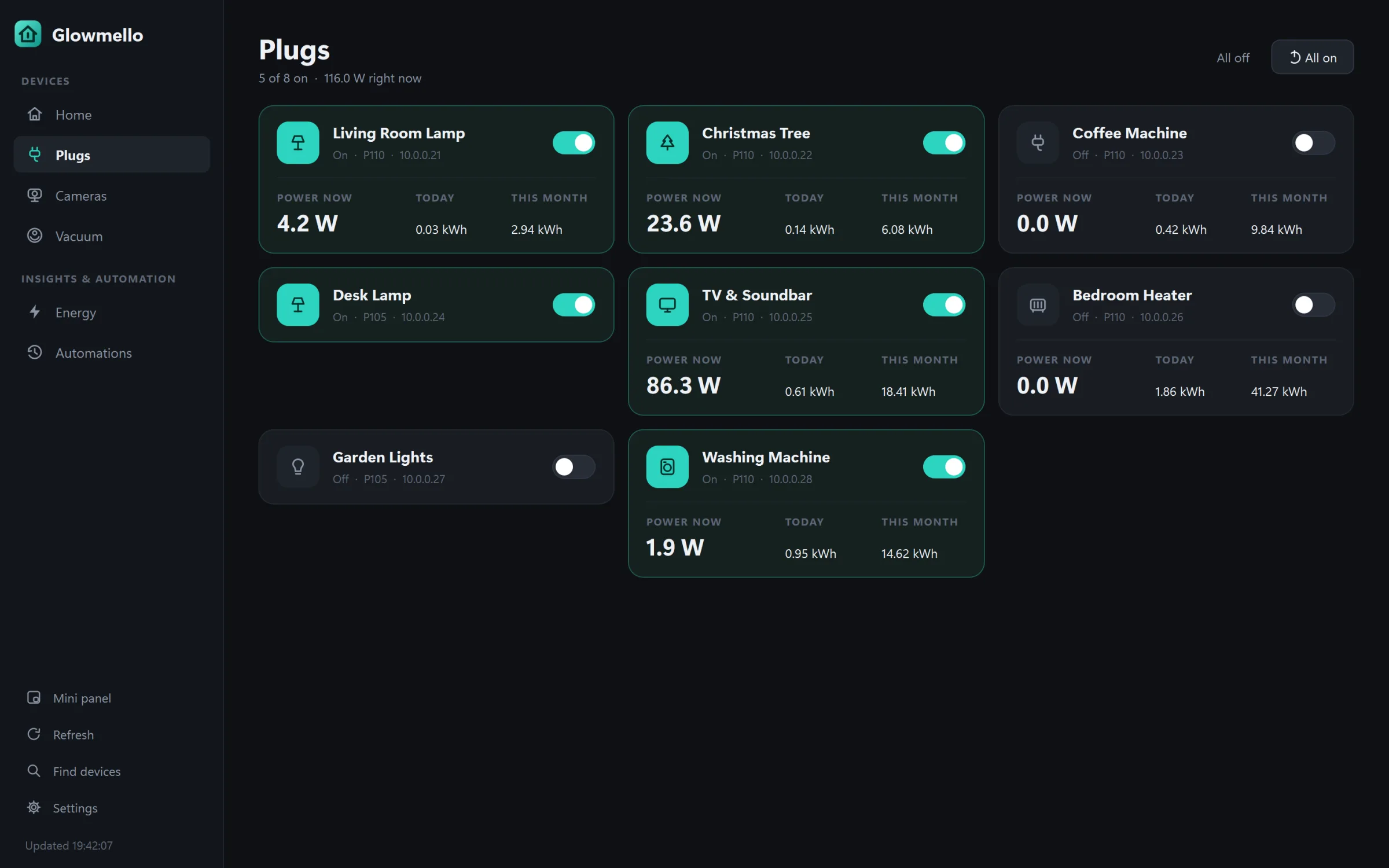
Every plug, one click away
Flick plugs on and off with proper switches, or turn the whole house off at once when you head to bed. Energy-monitoring plugs like the P110 show live watts as they happen.
Switches for P110, P105 and similar plugs
All on and All off in one go
Live watts, today and this month's energy
Glowmello
Cameras
Every camera, live, side by side
See all your Tapo cameras at once in a live grid – the hallway, the driveway, the nursery. Click one for pan, tilt and presets, or double-click to fill the screen. Compare the ways to view Tapo cameras on PC.
Live multi-camera grid – 1 to 4 per row
Full-screen camera wall, focus any camera with a double-click
Pan/tilt, presets, privacy mode, snapshots and recording
Motion alerts with auto-recorded clips, plus time-lapses
Glowmello
Hallway Camera
Robot vacuums
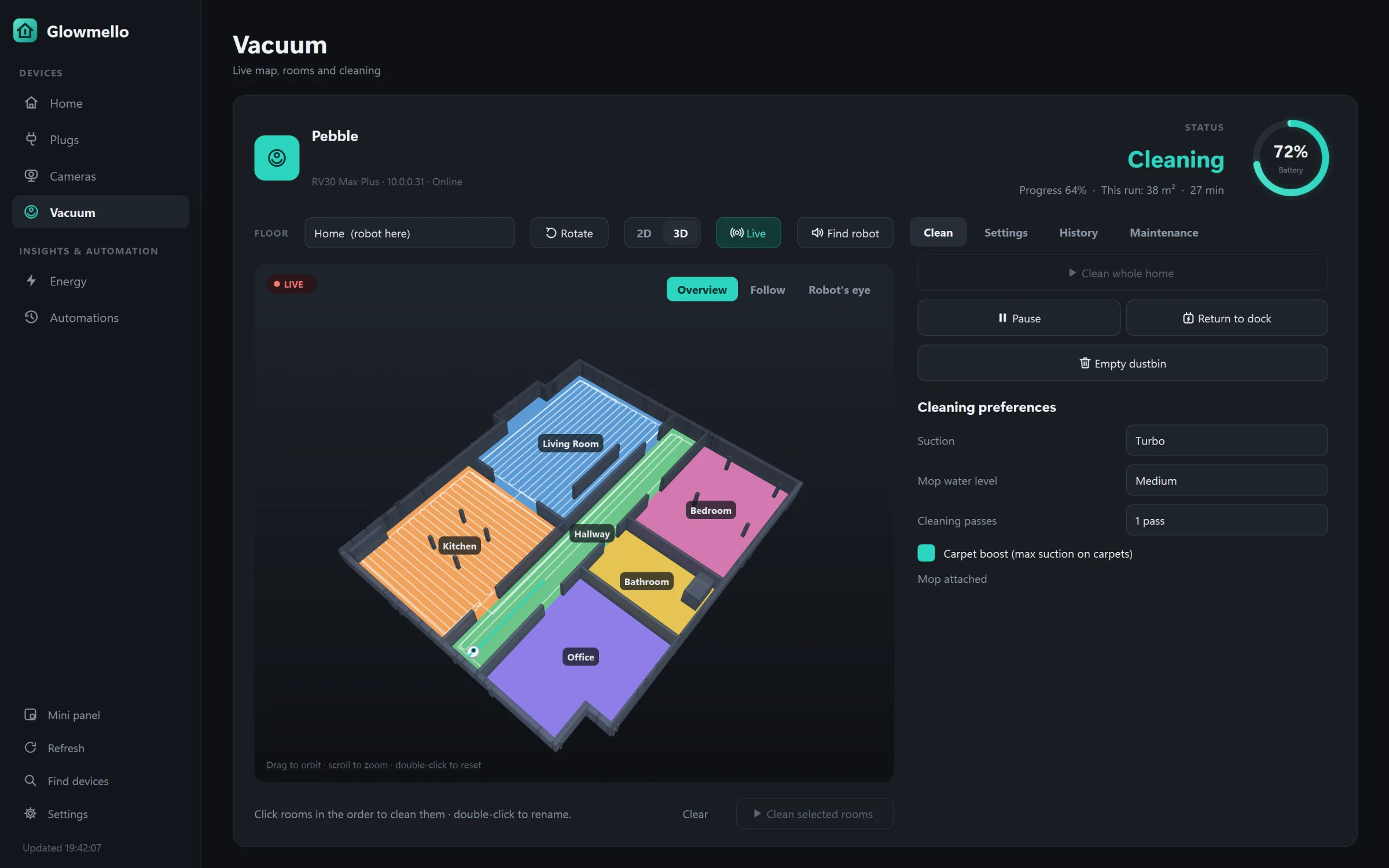
Watch the vacuum work – in 2D or 3D
A live map shows your rooms, where the robot is and the path it has cleaned. Click the rooms you want cleaned, in the order you want them, and off it goes. More on Tapo robot vacuums on PC.
Live 2D map, plus a live 3D view of your home
Suction, mop water, passes and carpet boost
Do Not Disturb, child lock and auto-empty settings
Cleaning history with a map snapshot of every run
Maintenance reminders before parts are due
Glowmello
3D map
Energy
Know what everything really costs
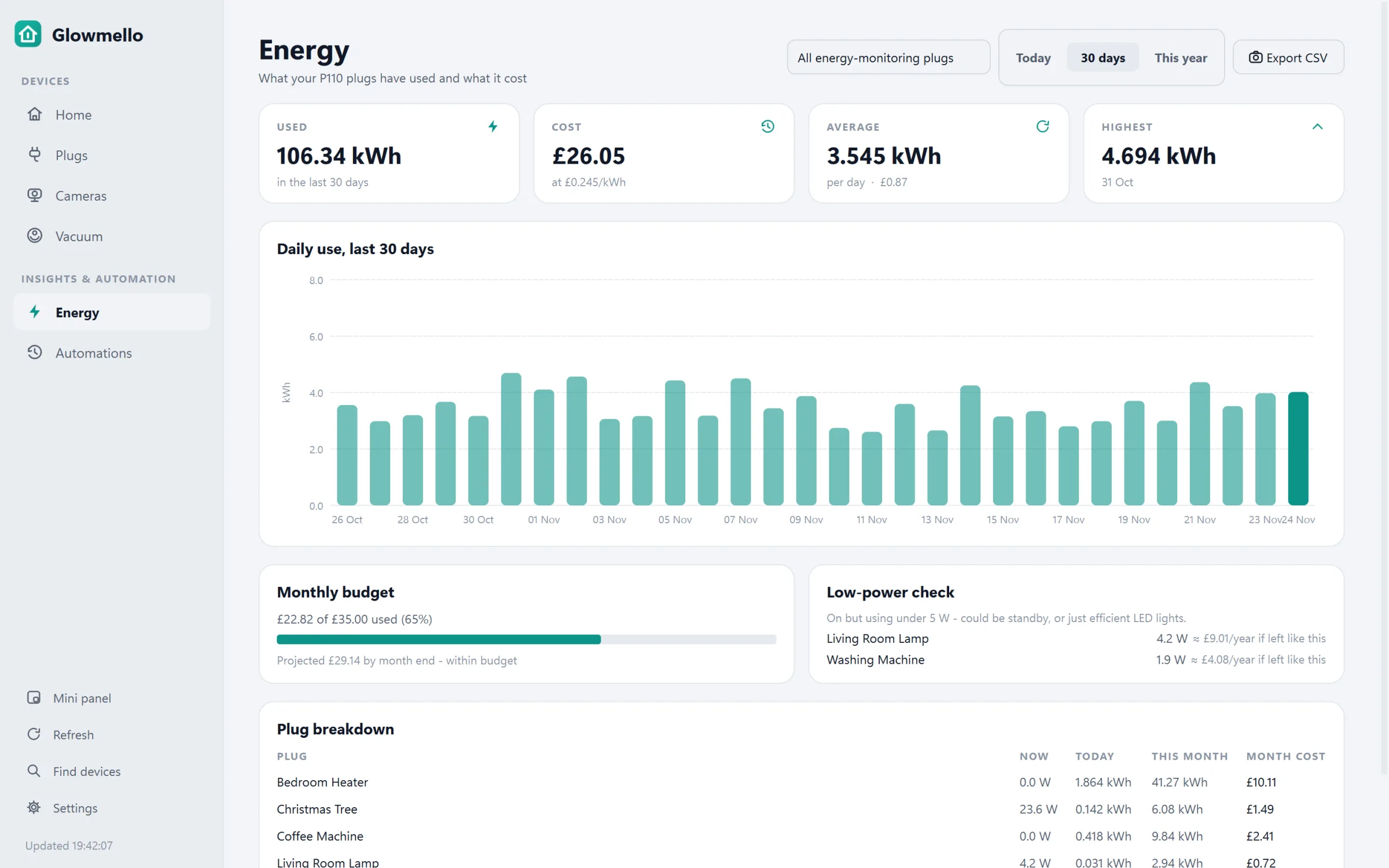
Hourly, 30-day and yearly charts for each plug or the whole home, priced at your own tariff. Set a monthly budget and Glowmello will gently let you know as you approach it. More on Tapo energy monitoring on PC.
Costs at your price, including off-peak (time-of-use) tariffs
Budget alerts at 80% and 100%
A standby check to find sneaky always-on devices
Per-plug breakdown and CSV export
Glowmello
Automations
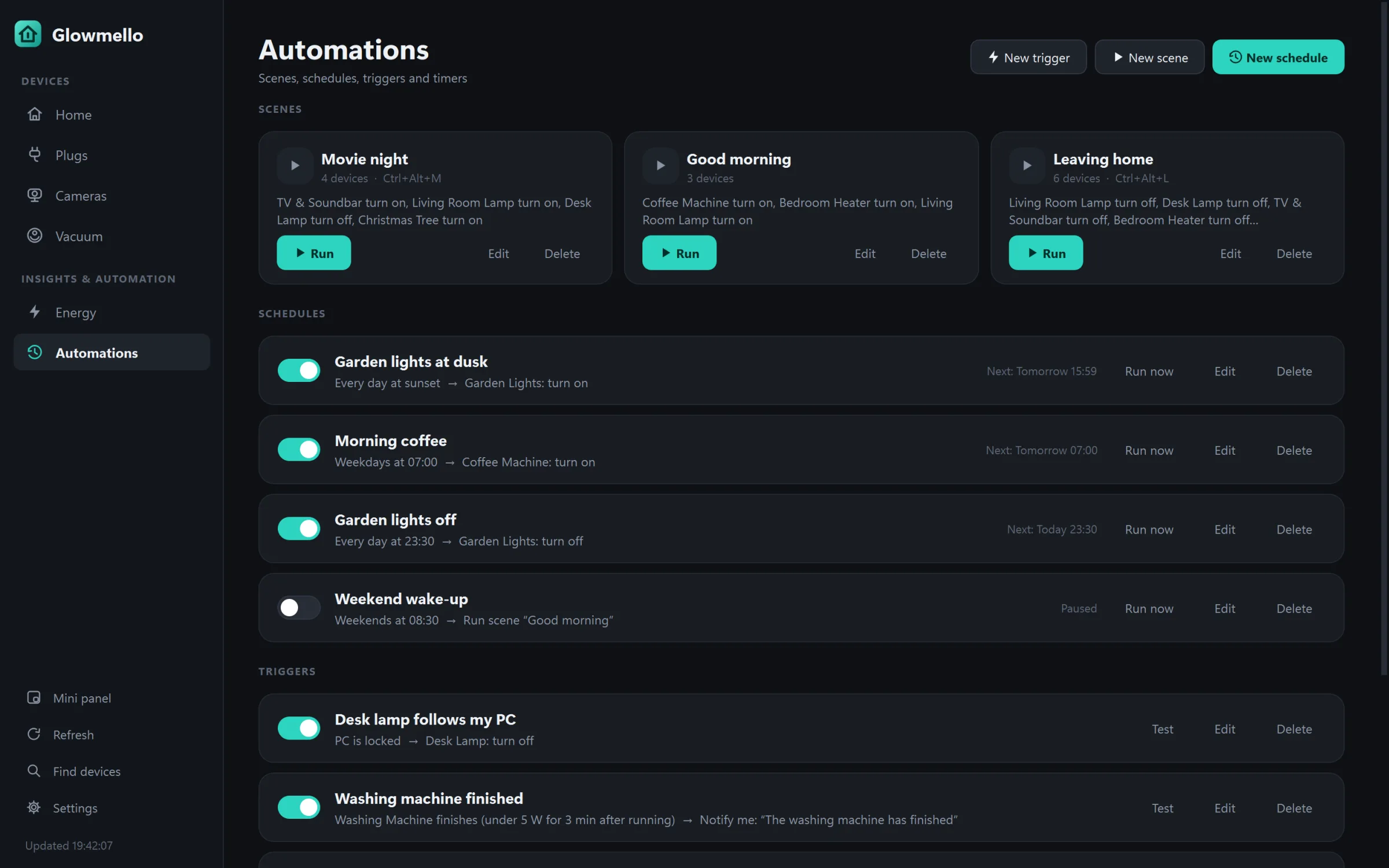
Let your home look after itself
Scenes, schedules, timers and clever triggers that know what your PC is doing. Lock your PC and the desk lamp goes off; finish the washing and you'll get a nudge.
Scenes with global shortcuts like CtrlAltM
Schedules by time, sunrise or sunset, on the days you choose
Timers – “turn the heater off in 60 minutes”
Triggers – PC lock, unlock, sleep, wake or shutdown; apps opening or closing; power above a level; an appliance finishing
Glowmello
Multi-camera
Your whole home, on one screen
Turn any monitor into a camera wall. Every camera live and full screen – double-click one to focus on it, press Esc to step back.
Indoor & outdoor Hallway, driveway, garden – side by side
Baby monitor Keep the nursery on screen while you work
Straight from your network Video never leaves your home
Made for Windows 11
Feels right at home on your PC
Little touches that make Glowmello a joy to live with, every day.
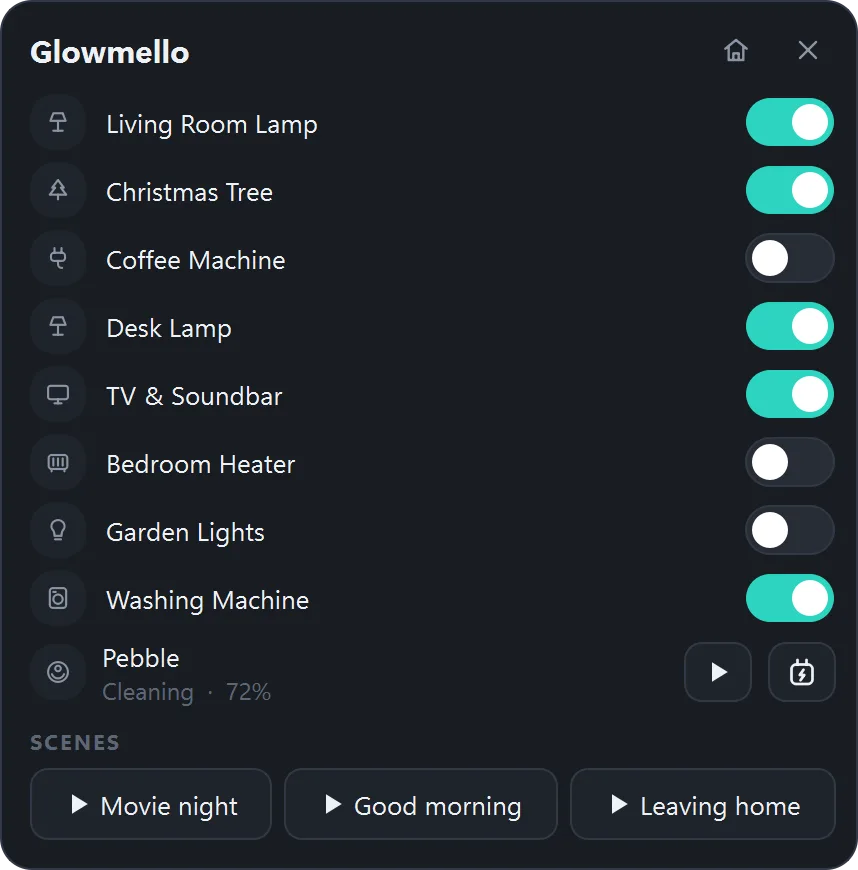
Always-on-top mini panel
A tiny floating window with your plug switches, vacuum controls and scenes. Perfect beside your work.
Lives in your system tray
Toggle plugs, start the vacuum or run a scene straight from the tray. Starts with Windows if you like, and stays out of the way.
18:42
Global shortcuts
Give any scene a keyboard shortcut that works anywhere in Windows.
CtrlAltM
Friendly notifications
Proper Windows notifications for the moments that matter.
Vacuum finishedLiving room and kitchen are spotless.
Triggers that know your PC
React to what you're doing, without lifting a finger.
PC locked
PC unlocked
Going to sleep
Waking up
Shutting down
App opens
App closes
Power above a level
Appliance finished
Motion clips & time-lapses
Glowmello can record a clip when your camera sees movement and quietly gather time-lapse frames, ready to turn into a video of the garden, the build or the bake.
REC
Sunrise & sunset
Schedules that follow the sun through the seasons, worked out on your PC.
Backup in a click
Export your scenes, schedules, triggers and preferences – and bring them back any time.
Budget alerts
Set a monthly energy budget and get a heads-up at 80% and 100%.
Dark & light
Cosy after dark, bright by day
Glowmello matches the way you like Windows to look, with a soft teal glow in both themes and a dark title bar that blends right in.
Glowmello
Glowmello
How it works
Up and running in minutes
No hubs, no bridges, no fiddly setup. If your devices are in the Tapo app, Glowmello can find them.
Install from the Microsoft Store
One click, and the Store keeps Glowmello up to date for you.
Enter your Tapo account
The same email and password you use in the Tapo app – encrypted on your PC and only used to talk to your devices.
Your devices appear
Glowmello finds the Tapo devices on your network automatically. Put the kettle on – you're done.
Compatibility
Works with TP-Link Tapo
Plugs, cameras and robot vacuums – including newer models that use TP-Link's latest security.
Smart plugs
On/off control for Tapo plugs, plus live power and energy on energy-monitoring models.
P110P105and similar
Cameras
A live multi-camera grid and full-screen wall, plus pan/tilt, presets, privacy mode, recording and motion clips on Tapo cameras.
C220and similar
Robot vacuums
Live 2D/3D maps, room-by-room cleaning, settings, history and maintenance on Tapo robot vacuums.
RV30 Max Plusand similar
Glowmello works with Tapo devices on your local network. Models listed are the ones we've tested; other Tapo plugs, cameras and vacuums that share the same features generally work too. Glowmello is an independent app and is not made by TP-Link.
Private by design
Your home stays in your home
Glowmello talks to your devices directly over your own network. Nothing goes through our servers – we don't even have any.
No cloudDevices are controlled locally, not via TP-Link's cloud.
No accountsNothing to sign up for. Use the Tapo login you already have.
No trackingNo analytics, no advertising, nothing sent to us.
Encrypted passwordsProtected with Windows DPAPI, readable only by your Windows account.
TP-Link's Tapo app is made for phones and tablets, and there's no official Windows version. Glowmello is an independent Windows 10 and 11 app that works with your Tapo cameras, plugs and robot vacuums – no phone or Android emulator needed.
Can I view my Tapo camera on my PC?
Yes. Glowmello shows your Tapo cameras live on your PC – one at a time with pan, tilt and presets, side by side in a multi-camera grid, or full screen as a camera wall. See how to view Tapo cameras on PC.
Do I need BlueStacks or an Android emulator?
No. Glowmello is a proper Windows app from the Microsoft Store. It talks to your devices directly over your home network, so there's no emulator, no phone and no cloud in the middle.
Which Tapo cameras work on PC?
Tapo cameras that let you create a Camera Account (RTSP) – such as the C100, C200, C210, C220, C310, C320WS, C500 and C510W. Battery cameras that only connect through a hub aren't supported yet.
Does Glowmello use the TP-Link cloud?
No. Glowmello talks to your devices directly over your home network. Your account details and camera video aren't sent over the internet by Glowmello. (Your devices themselves may still talk to TP-Link's services, as they normally do.)
Which devices does it work with?
Tapo smart plugs (such as the P110 and P105), Tapo cameras (such as the C220) and Tapo robot vacuums (such as the RV30 Max Plus). Live power and energy figures need an energy-monitoring plug like the P110. Some newer devices use TP-Link's newer security – those are supported too.
Do I need to set anything up in the Tapo app?
Just a couple of things. For plugs, turn on Me › Tapo Lab › Third-Party Compatibility. For a camera, create a Camera Account under camera › Settings › Advanced Settings, then enter it and the camera's IP address in Glowmello. Our support page walks you through it.
Can I control my home when I'm away?
Glowmello works on your home network, so your PC and your devices need to be on the same network. That's what keeps it fast and private.
Do automations run when my PC is off?
Automations run from Glowmello itself, so your PC needs to be on and the app running. It's happy to sit quietly in the system tray, and can start with Windows.
How are my passwords stored?
On your PC only, encrypted with Windows Data Protection (DPAPI), so only your Windows user account can read them. We never see them.
Can I add new devices with Glowmello?
Not yet – add new devices with the Tapo phone app first, and Glowmello will pick them up.
Which version of Windows do I need?
Windows 11, or Windows 10 (version 2004 or later). Glowmello installs from the Microsoft Store, which also keeps it up to date.
Bring a little glow to your desktop
Your plugs, cameras and robot vacuum – calm, private and beautifully together on Windows 11.