Tapo robot vacuums on Windows

Your Tapo robot vacuum, on your PC

There's no official Tapo app for Windows – TP-Link's Tapo app only runs on phones – so there's no built-in way to control a Tapo robot vacuum from a PC. Glowmello fills that gap: a Windows 10 and 11 app with a live map of your home, room-by-room cleaning, cleaning history and notifications – no phone or emulator needed.

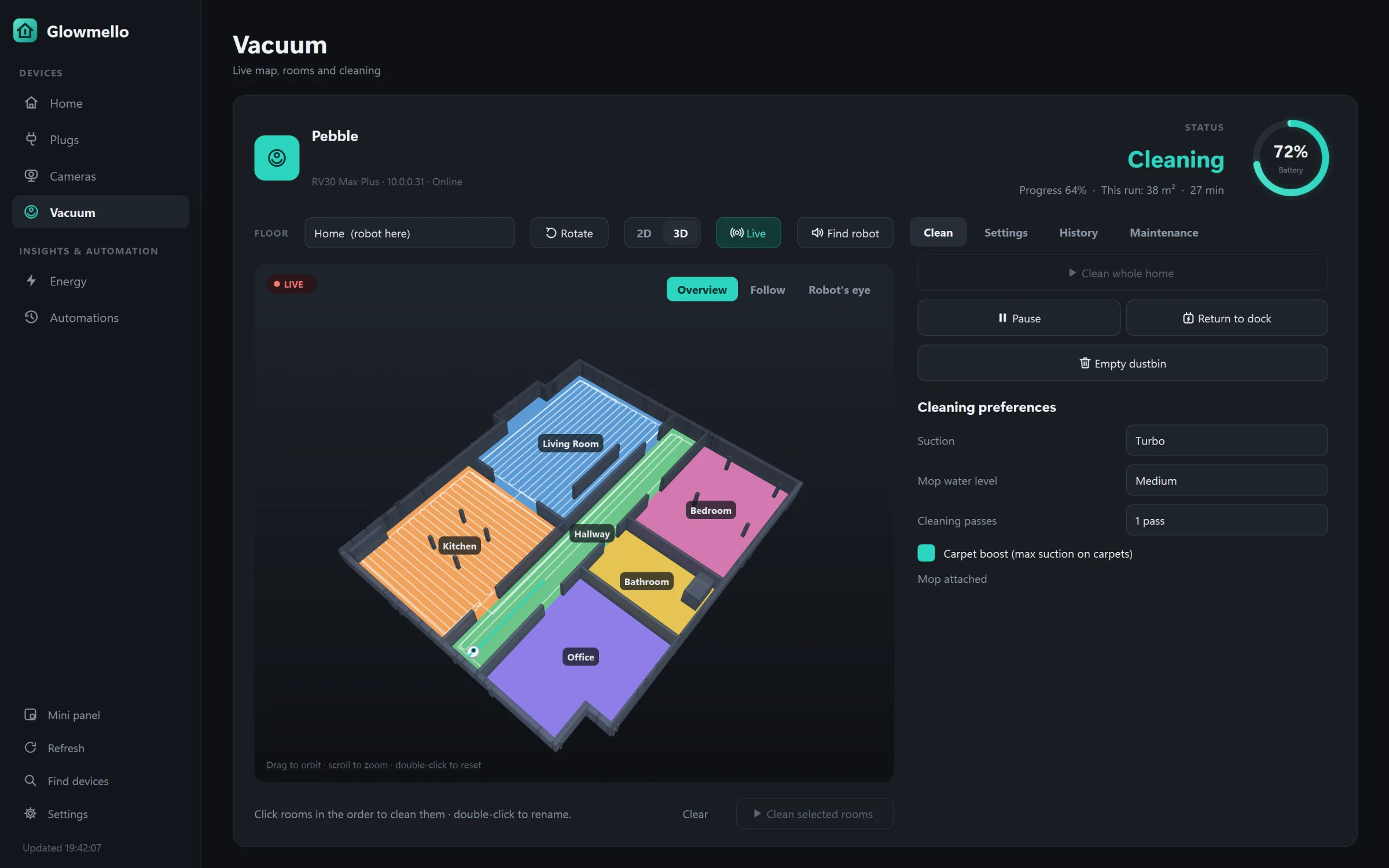
Glowmello on a Windows PC showing a Tapo robot vacuum's live 2D map, with coloured rooms, the robot's position and its cleaning path.

What you can do

Control your Tapo robot vacuum from your PC

Everything you reach for day to day, on the screen you're already using. One-off £6.99 on the Microsoft Store – no subscription.

Map & rooms

A live map, in 2D or 3D

See your home as the robot sees it, with its live position and the path it has cleaned. Switch to 3D and rotate the view to look around.

  • Rooms shown in colour, with their names – double-click to rename
  • Click rooms in the order you want them cleaned, then Clean selected rooms
  • Switch between your saved floor maps
The live 3D map of the home in Glowmello, showing walls, rooms and the robot vacuum.
Automations

Vacuum while you're out

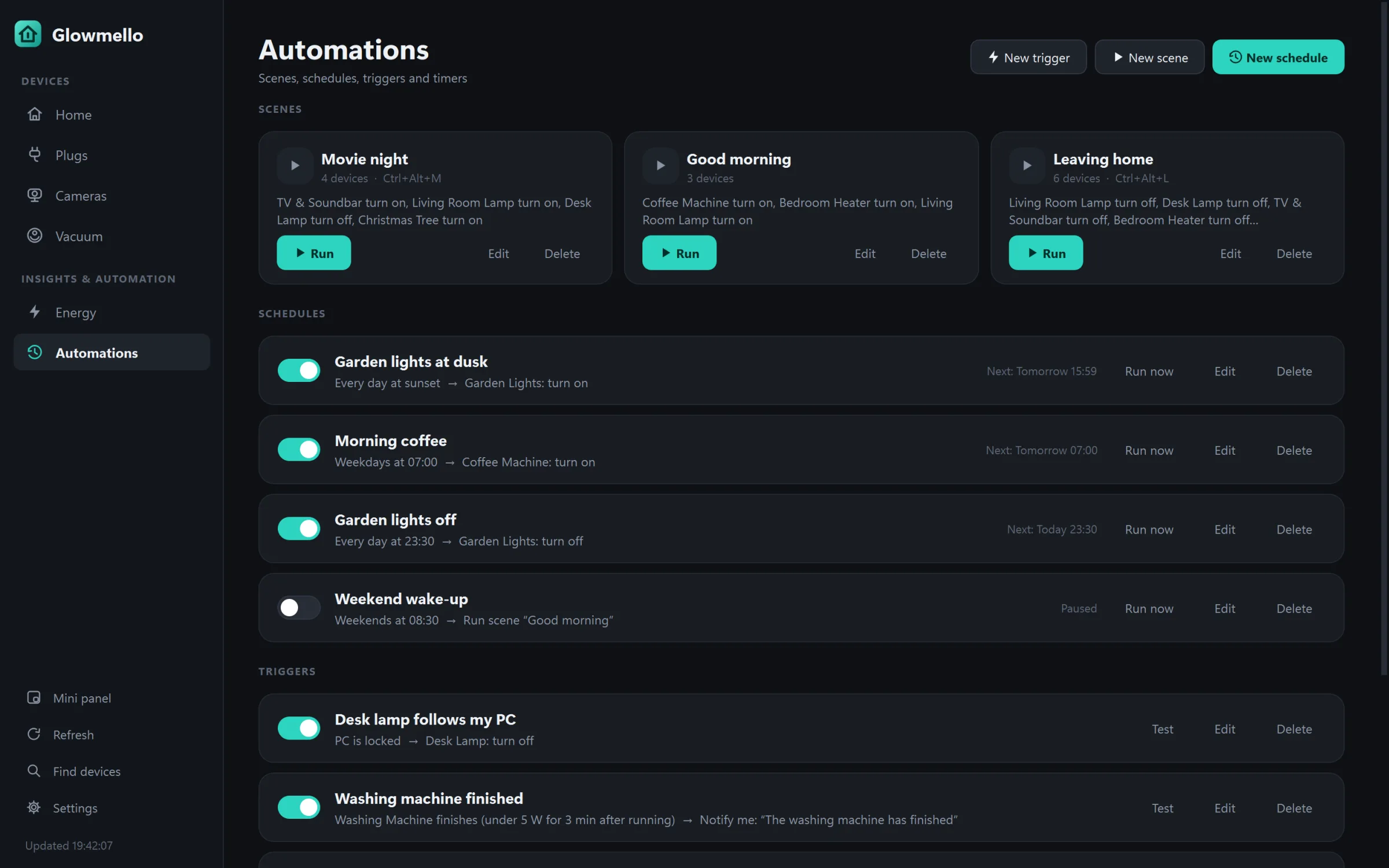
Start a clean whenever it suits you – including automatically, once your PC has been locked for a while.

  • From the system tray or the always-on-top mini panel
  • From a scene with a keyboard shortcut
  • On a schedule
  • When your PC has been locked for a while (“vacuum while I'm out”)
The Automations page in Glowmello listing scenes, schedules, timers and triggers.

The details

Cleaning controls, history and reminders

Always-on-top mini panel

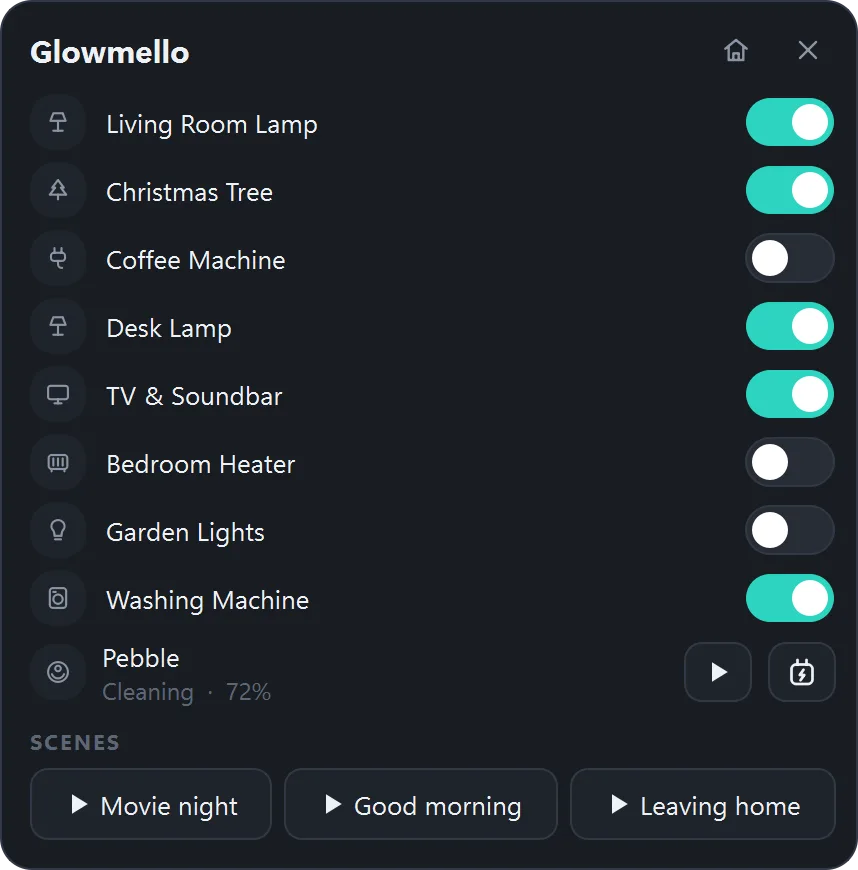
A small floating window with vacuum controls beside your work – start, pause or send it home without opening the main app.

Glowmello's compact mini panel with vacuum controls, plug switches and scenes.

All the cleaning controls

Clean the whole home or just the rooms you pick, pause, return to dock, or find the robot – it plays a sound so you can track it down. On models with an auto-empty dock, you can empty the dustbin too. Choose suction (such as Turbo), mop water level, number of passes and carpet boost, and set Do Not Disturb hours, volume and child lock.

Cleaning history

Past runs with time and area. The robot doesn't keep a map of each run, so Glowmello saves a snapshot of the map whenever it sees a run finish.

Maintenance reminders

Hours remaining for the side brush, main brush, filter, sensors, charging contacts and mop pad.

Windows notifications

A heads-up on your PC when cleaning finishes, when the robot gets stuck or needs attention, and when its battery is low.

Local and private

Glowmello talks to your vacuum over your home network – no cloud in the middle and no tracking. Your TP-Link password is encrypted on your PC with Windows Data Protection.

Your options

Tapo vacuum on Windows: how the options compare

The free Tapo phone app is the official, full-featured way to run your robot – including map editing. Here's how it compares with the ways of using it on a PC.

Feature Tapo phone appOfficial, free Android emulatore.g. BlueStacks + Tapo app Best on PCGlowmelloWindows 10 & 11 app
Runs as a normal Windows appNo – phone onlyNo – Android in an emulatorYes
Live mapYesYes, inside the phone appYes
3D map you can rotateDepends on modelAs the phone appYes
Room-by-room cleaningYesYesYes, in your chosen order
Map editing & no-go zonesYes, on supported modelsAs the phone appNo – use the Tapo app
History with a map of each runHistory of past runsAs the phone appMap snapshot of runs it sees finish
Notifications on your PCOn your phoneOnly while the emulator runsWindows notifications
Automations tied to your PC (lock, away)Depends on modelAs the phone appYes
SetupInstall on your phoneInstall emulator, then the appSign in once with your TP-Link ID

If you run Home Assistant, there are also unofficial community integrations for Tapo vacuums – handy if you're comfortable with a more technical setup.

Setting up

Set up your Tapo vacuum on Windows in 3 steps

  1. Make sure the robot has a map

    Set the vacuum up in the Tapo phone app as usual. It builds a map of your home on its first run from the dock – Glowmello uses that map.

  2. Install Glowmello on a PC on the same network

    Get Glowmello from the Microsoft Store on your Windows 10 or 11 PC. Your PC and vacuum need to be on the same home network.

  3. Sign in once with your TP-Link ID

    Glowmello finds your vacuum and shows its live map on the Vacuum page. From then on it talks to the robot directly over your home network.

Compatibility

Which Tapo robot vacuums work on PC?

Tested Glowmello is tested with the Tapo RV30 Max Plus, so if you want your Tapo RV30 on PC, you're covered – including emptying the dustbin from its auto-empty dock.

May work Other Tapo robot vacuums that work with the open-source python-kasa library. If yours doesn't, email support@glowmello.com and we'll take a look.

Glowmello is an independent app and isn't made by TP-Link.

FAQ

Tapo robot vacuums on PC – questions

Is there a Tapo robot vacuum app for PC?

Not from TP-Link – the official Tapo app is for phones and tablets only. On a PC you can run the phone app in an Android emulator such as BlueStacks, or use a Windows app made for Tapo, like Glowmello, which controls your Tapo robot vacuum directly.

Can I see my Tapo vacuum's map on Windows?

Yes. Glowmello shows a live map of your home in 2D or 3D, with your rooms in colour, the robot's position and the path it has cleaned. You can rotate the 3D view to look around.

Which Tapo robot vacuums work?

Glowmello is tested with the Tapo RV30 Max Plus. Other Tapo robot vacuums that work with the open-source python-kasa library may work too. If yours doesn't, email support@glowmello.com and we'll take a look.

Can I edit the map or add no-go zones?

Not in Glowmello. Map editing and no-go zones (on models that support them) stay in the Tapo phone app. You can rename rooms in Glowmello with a double-click, and switch between your saved floor maps.

Will I get a notification when cleaning finishes?

Yes. Glowmello shows a Windows notification when the vacuum finishes cleaning, when it gets stuck or needs attention, and when its battery is low.

Does it need the cloud?

No. You sign in once with your TP-Link ID so Glowmello can find your vacuum, and after that it talks to it directly over your home network – no cloud in the middle and no tracking. Your password is encrypted on your PC with Windows Data Protection.

Clean floors. Clicked from your desk.

£6.99 once, no subscription. Glowmello also shows your Tapo cameras live on your PC and tracks energy from your Tapo plugs. See everything it does.